
1Open the tool you want to rent
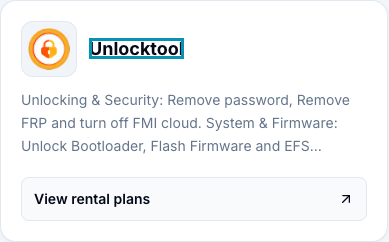
- Open the rental catalog and select the tool you need, such as Unlocktool, to open its product page.
- Check the product details and availability before choosing a package. If it is unavailable, check again later or choose another suitable tool.
 Open full-size screenshot
2Choose your rental duration
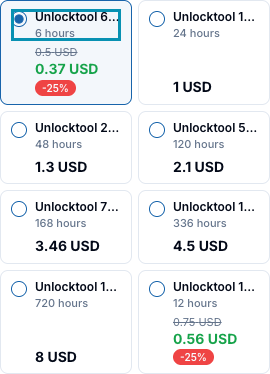
- In the rental package section, select a duration and check the price and total. Packages, prices, and availability may change.
- If you need to install the software, use the download link on the product page when available.
 Open full-size screenshot
3Add your email and select Rent Now
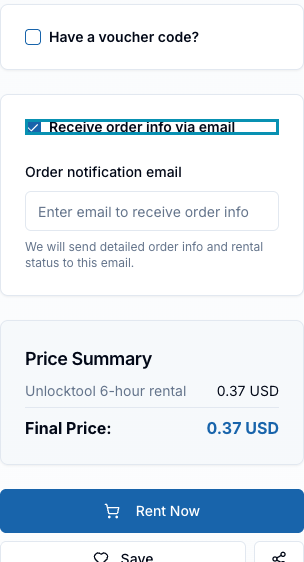
- You can rent as a guest. To find the order in your VietUnlock account later, sign in before placing it.
- Turn on “Receive order info via email” and enter an address you can access. If you have a voucher, apply it before reviewing the total.
- Select “Rent Now” to create the order and open checkout.
 Open full-size screenshot
4Pay for your rental
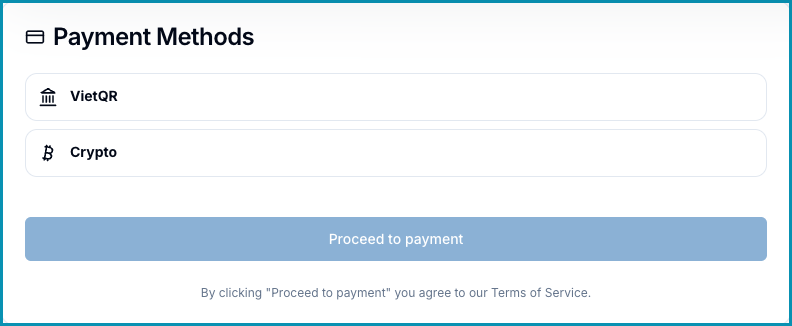
- Check the tool, package, and total. Copy the order code at the top of checkout or save the order link. Choose an available method, then select “Proceed to payment”.
- If you’re signed in, select “Account wallet” when it appears. Make sure your balance covers the full order total, then select “Proceed to payment”. If your balance is too low, top up or choose another method.
- For a bank transfer, use the QR code or payment details shown and follow the amount and reference exactly. For crypto, follow the displayed currency, network, and amount.
- Complete payment before checkout expires. Wait for the site to confirm it, then select “View Order Details” when it appears.
 Open full-size screenshot
5Find your rental login and sign in to the tool
- Once payment is confirmed and your rental is ready, open Order Details. Copy the username and password under “Account Information”.
- Open the software or app for the product you rented and sign in with those details. Check the access period on your order.
- To reopen the order, use the saved link, the email notification, or enter the order code in “Track Order”. On mobile, open the site menu. On desktop, select the magnifying glass next to Support. If you signed in before ordering, you can also find it in your rental orders.
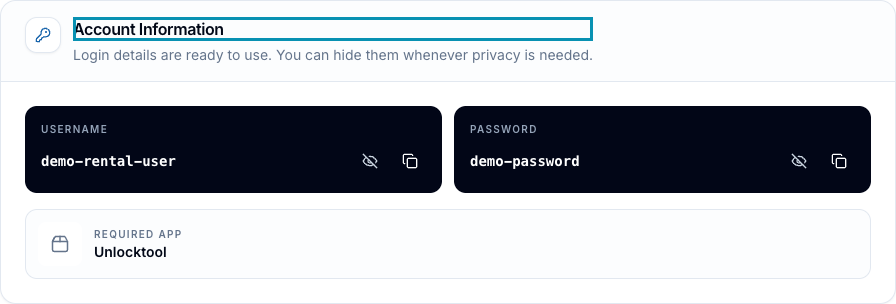 Open full-size screenshot
Frequently asked questions
I paid. Why is my rental login missing?
Return to checkout or Order Details and check the status. If the order is still pending or under review, avoid paying again. Send your order reference and payment receipt to support.
I closed checkout or cannot find the email. What now?
Check spam if you enabled email notifications. Use your saved order link or tracking code. If you cannot locate it, contact support with the transaction details you have.
What if the tool rejects my login?
Check that you opened the correct software, that the rental is still active, and that you copied the details from the order. If it still fails, share the order reference and a screenshot of the error with support. Hide the username and password before sharing the screenshot.